How to turn a photo into a PDF on your phone
To turn paper into a PDF, take a photo, crop it and save it. If the photo is already in your gallery, import it instead. PDF Feel’s Scan to PDF keeps you in the same editor to add pages and, when needed, correct a word before sending the document.
Photo to PDF, step by step
1. Open Scan to PDF on your phone
Open PDF Feel in your browser and choose Scan from camera or scanner. Tap Take a photo or upload a file to photograph a paper document or choose an image already in your gallery. You do not need to install the app to use the website.
2. Take a photo or upload an existing image
Choose Take a photo for a paper document. Hold your phone parallel to the page, include every corner and use even lighting without shadows or glare. If you already have a photo, choose Upload a file. Imported images open directly in the editor; newly captured photos first open Crop and straighten. The camera screen depends on your phone and browser.
3. Crop and straighten the page
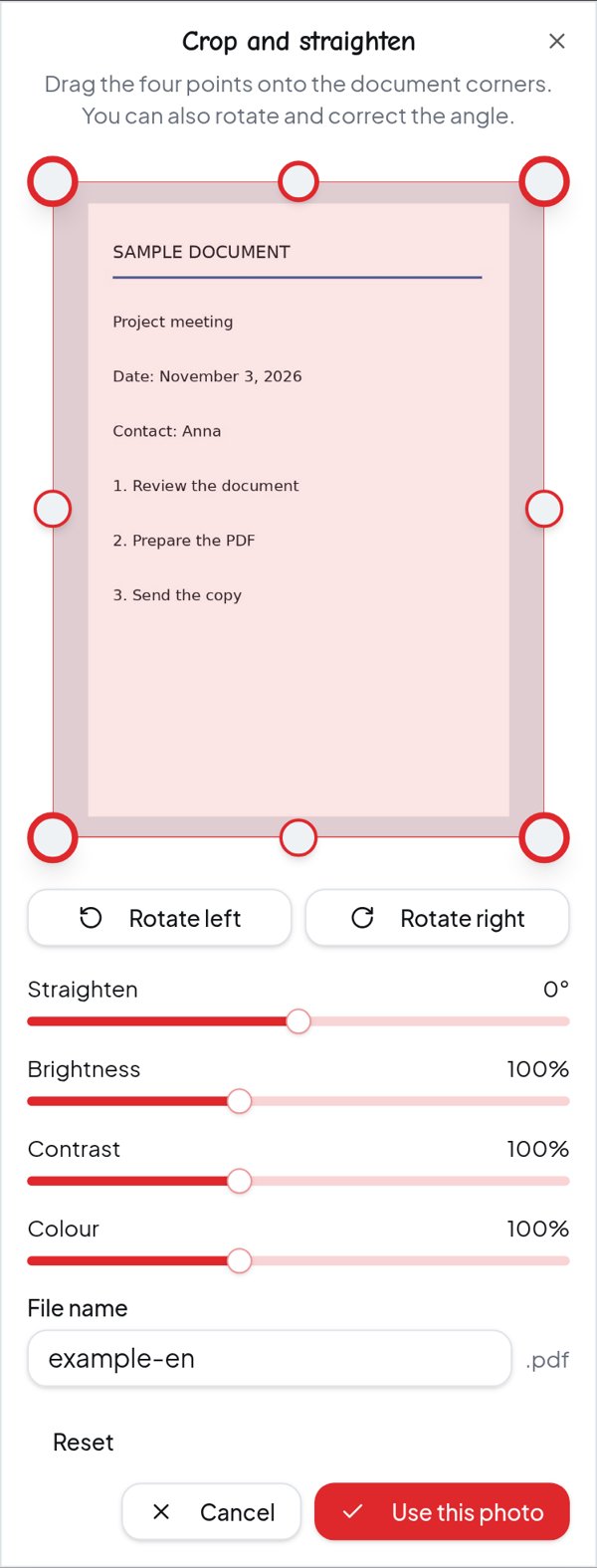
Drag the four points onto the document corners. Rotate the page if needed and adjust its angle; you can also change brightness, contrast and colour. Check that small text and edges are not cut off, then tap Use this photo. For an imported image, open Tools and choose Adjust image to make the same corrections.
4. Add more photos to the same PDF
Tap Add page in the editor and photograph the next sheet or upload another file. Repeat for the pages you need. Check the page count and use the thumbnails to review each sheet. The Pages menu lets you move a page backward or forward. You do not need to download and merge a separate PDF for every photo.
5. Review the document before saving
Zoom in and check names, dates, numbers and page order. For a small correction, open Edit text within the same editor: word detection on scans uses OCR and needs checking. If you do not need to change anything, go straight to the download.
6. Name the file and download your PDF
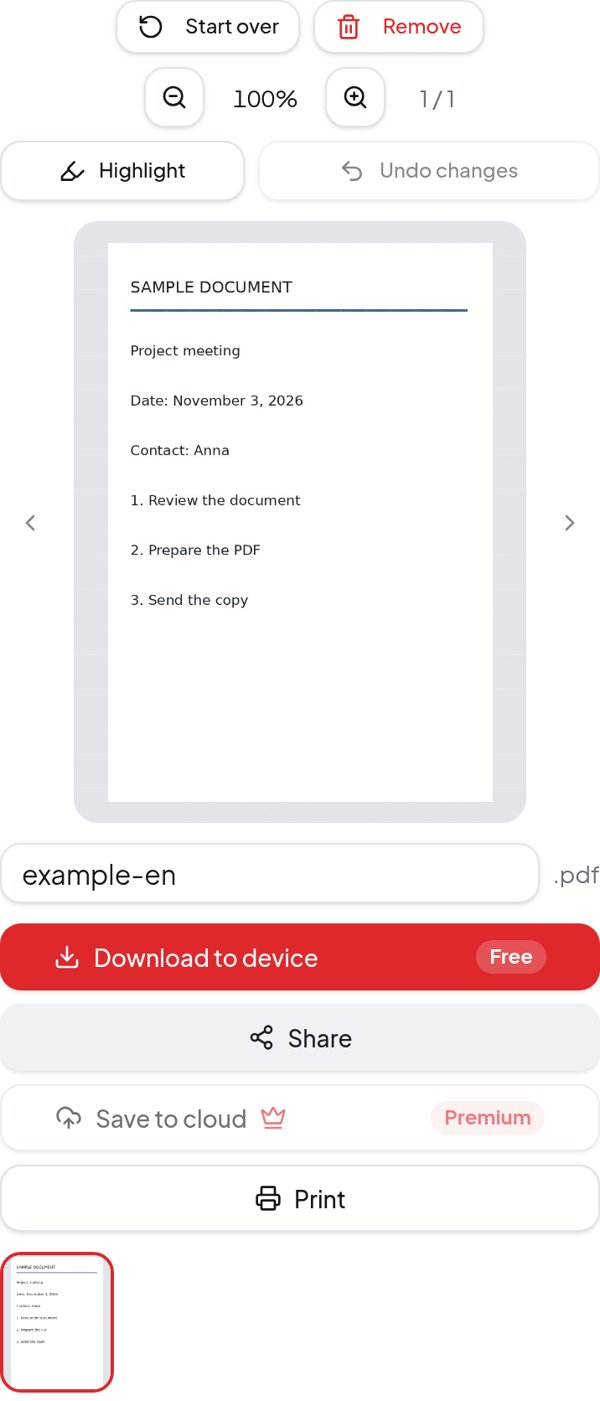
On your phone, the file name is below the preview. Enter a recognizable name, tap Download to device and confirm the name when prompted. Your PDF contains the captured pages. Open the saved file before sending it. You can also use Share; if your browser does not support file sharing, download the PDF and attach it from your messaging or email app.
From photo to editor: a real example
PDF Feel phone screenshots using a sample document: image adjustments first, then the preview with download and sharing.
A photo inside a PDF is not a Word document
PDF is a convenient format for collecting and sending pages, but it does not automatically make the letters in a photo selectable. Scan to PDF’s useful extra is the direct path from the photo to the editor: adjust the page and try a small correction without leaving the document.
To change a name or date, follow the PDF text editing guide. This is a visual correction, not secure redaction: covering a word does not guarantee removal of the original data.
If the result is hard to read
- Blurry text: take another photo while holding the phone steady. Increasing contrast cannot recover out-of-focus letters.
- Shadows or glare: change your position and lighting before taking the photo; check numbers and small print carefully.
- Missing edges or a tilted page: reopen Adjust image and check the corners, rotation and angle.
- A PDF that is too large: try PDF compression, then check readability again before sending.
Frequently asked questions
- How do I convert a photo already saved on my phone to PDF?
- Open Scan to PDF, tap Take a photo or upload a file and choose Upload a file. Select the image from your gallery: it opens directly in the editor. Use Adjust image if needed, then download the PDF. For straightforward image conversion without the scanning workflow, you can also use JPG to PDF.
- Can I put several photos into one PDF?
- Yes. Use Add page to add the photos to the same document, check their order and download one PDF. More pages and high-resolution images make the file larger.
- Does it work on iPhone and Android without installing an app?
- PDF Feel runs in your phone’s browser. Take a photo requests a picture through the device’s camera interface; available options vary by phone and browser. If the camera does not open, take the photo with your Camera app and import it using Upload a file.
- Does converting a photo to PDF make the text editable?
- No. Saving a photo as PDF keeps the page as an image. Edit text can try to detect words with OCR and make small visual corrections, which you should verify. It does not turn the entire page into a Word document, and recognition can be unreliable for blurry text, handwriting or poor-quality scans.
- Is it free, and do I have to sign in to open the photo?
- You can open and read the document without signing in. Operations such as adding pages, editing and downloading follow your available free uses. The website shows your allowance and requests sign-in or offers Premium when needed. Opening a file does not consume a processing. Current allowances and file limits are on the Premium page.
- Are my photos uploaded to the cloud?
- Photo acquisition, image adjustments and PDF creation run in your browser. Cloud saving is a separate option. Not every website feature is local: Translate, for example, sends extracted text to a translation service. Do not use online services for sensitive documents unless you are authorized to do so.
Your paper document, ready to send
Capture or import a photo, review the pages and download your PDF. The website shows your available free uses; opening and reading the document does not require sign-in. Cloud saving is optional.
Turn your photo into a PDF